Xcode is a large application that serves many purposes for software developers.
Among many other tasks that they perform on a regular basis, software developers write code.
However, we do not always want to write code as part of a large project.
That is where an Xcode playground is useful – it is a place to try out short ideas with code outside of the context of a large project.
Make a new playground
To create a playground, make sure that Xcode is in the foreground on your computer by clicking it’s icon in the Dock:
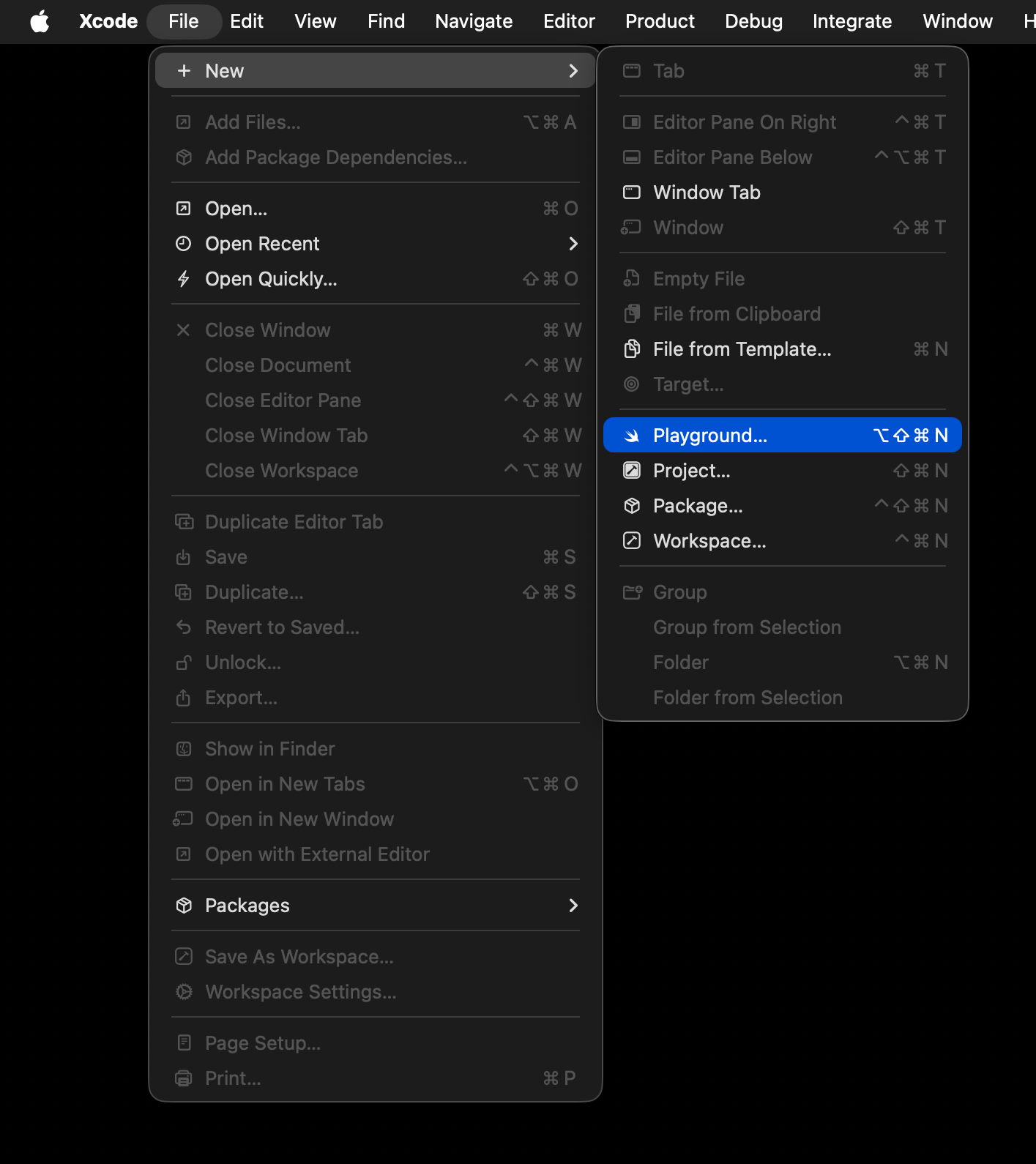
From the menu bar at top left, choose File > New > Playground…:
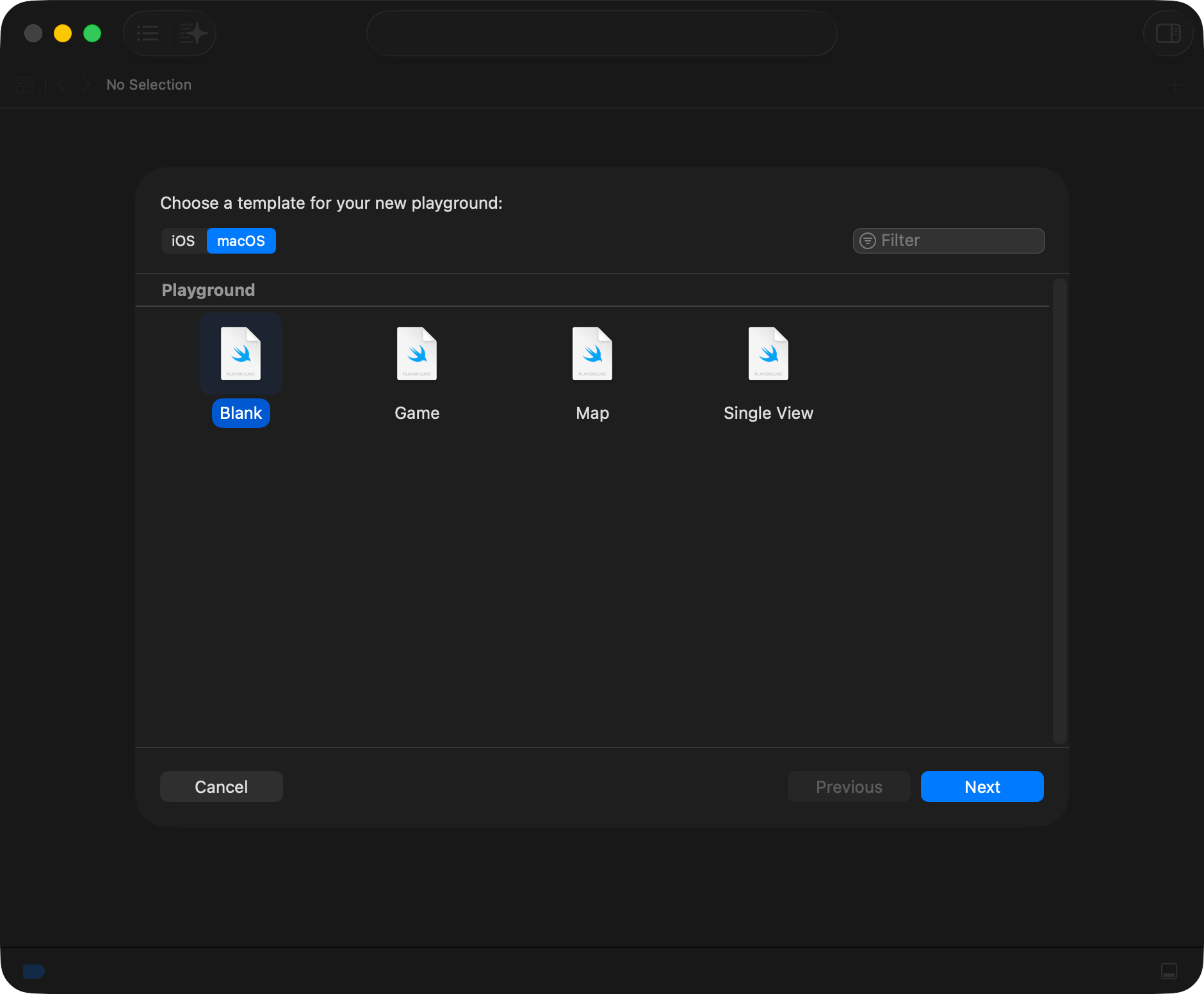
You will see the following window – here, choose the macOS tab, then Blank, and then Next:
On the next screen, you are choosing where to save your playground.
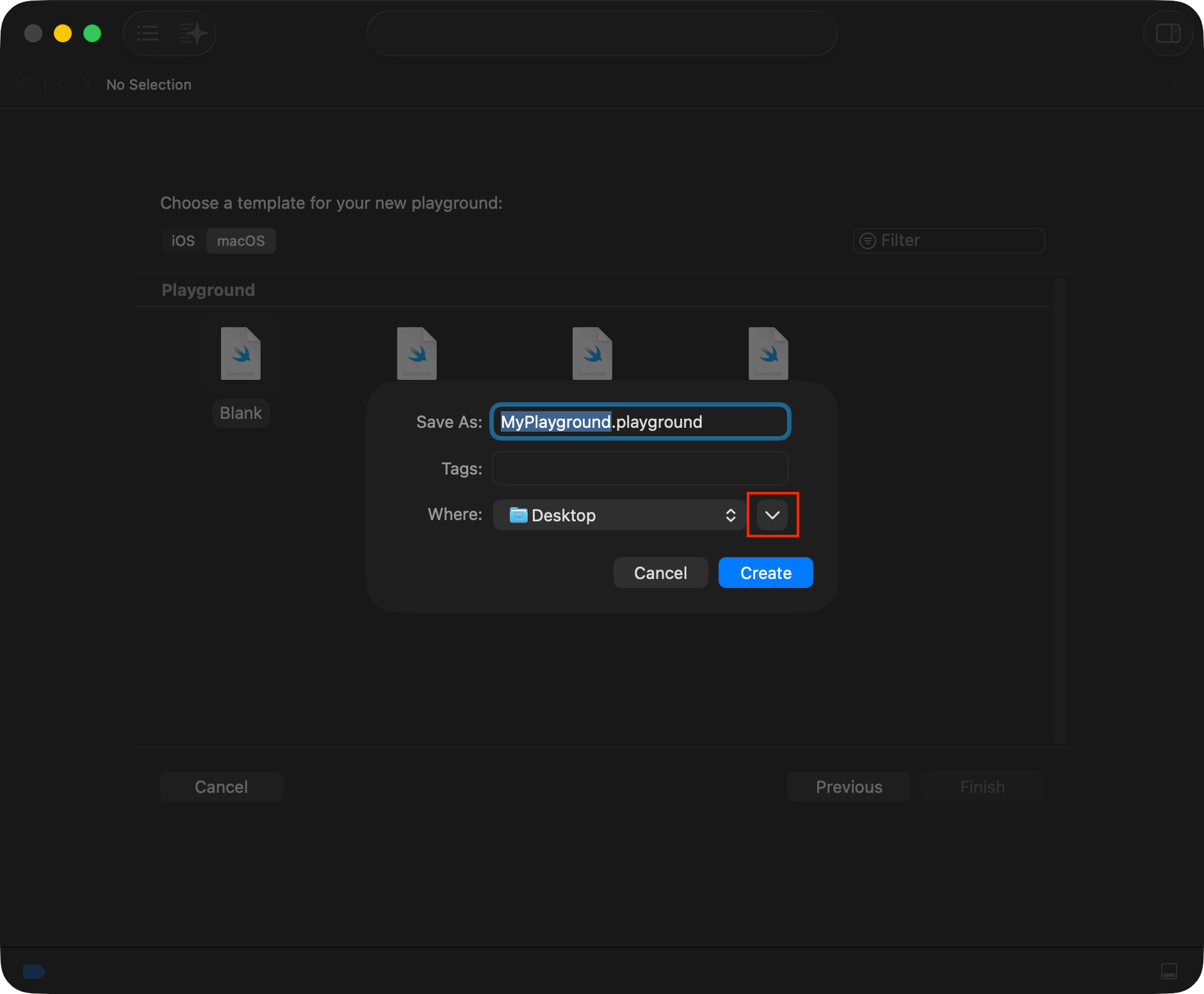
You may see a window that looks like the one below – if you do, press the button with the downward facing arrow to open the larger file navigation interface:
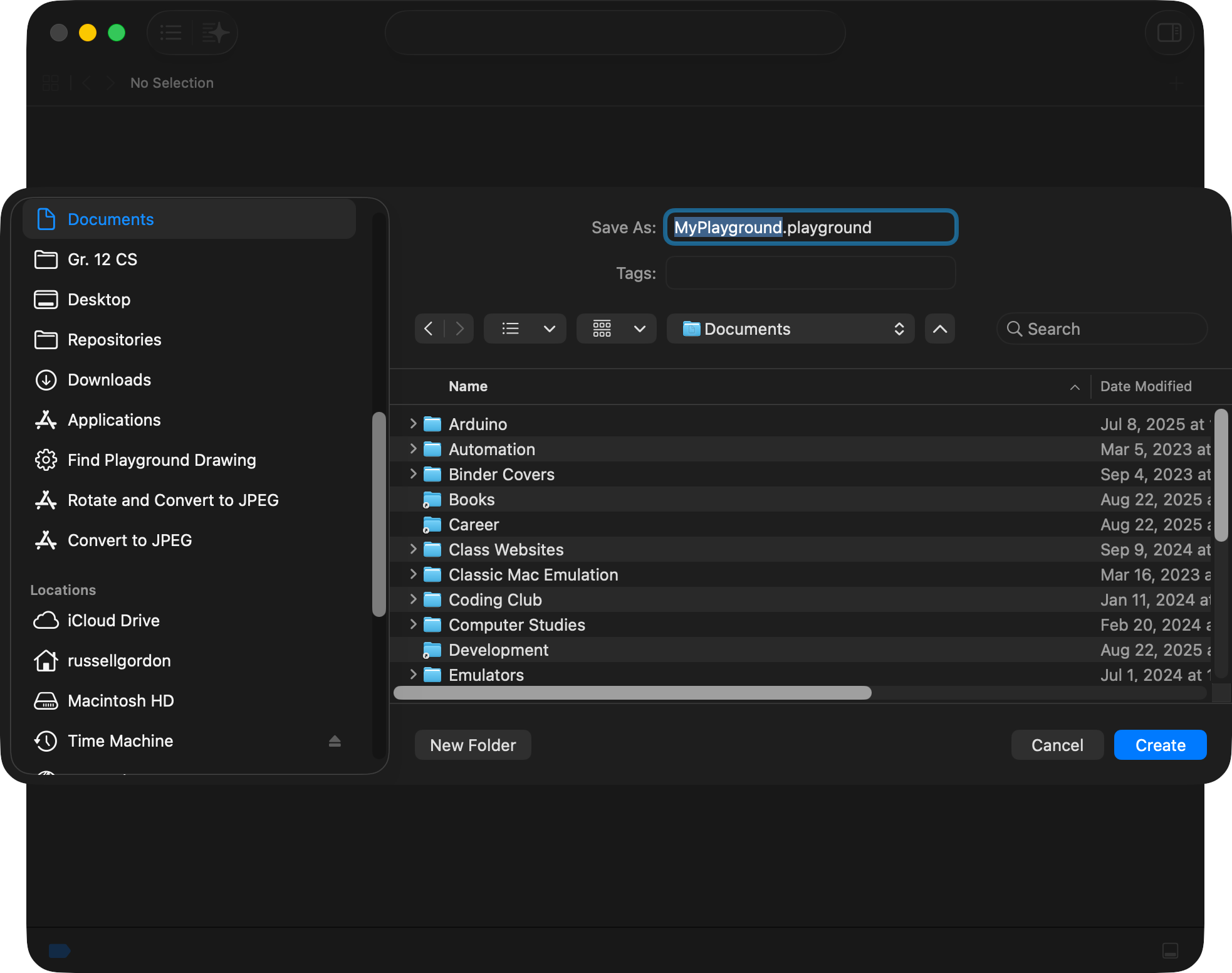
Now you have the ability to see your Finder shortcuts (at left) and more easily navigate around the file system on your computer:
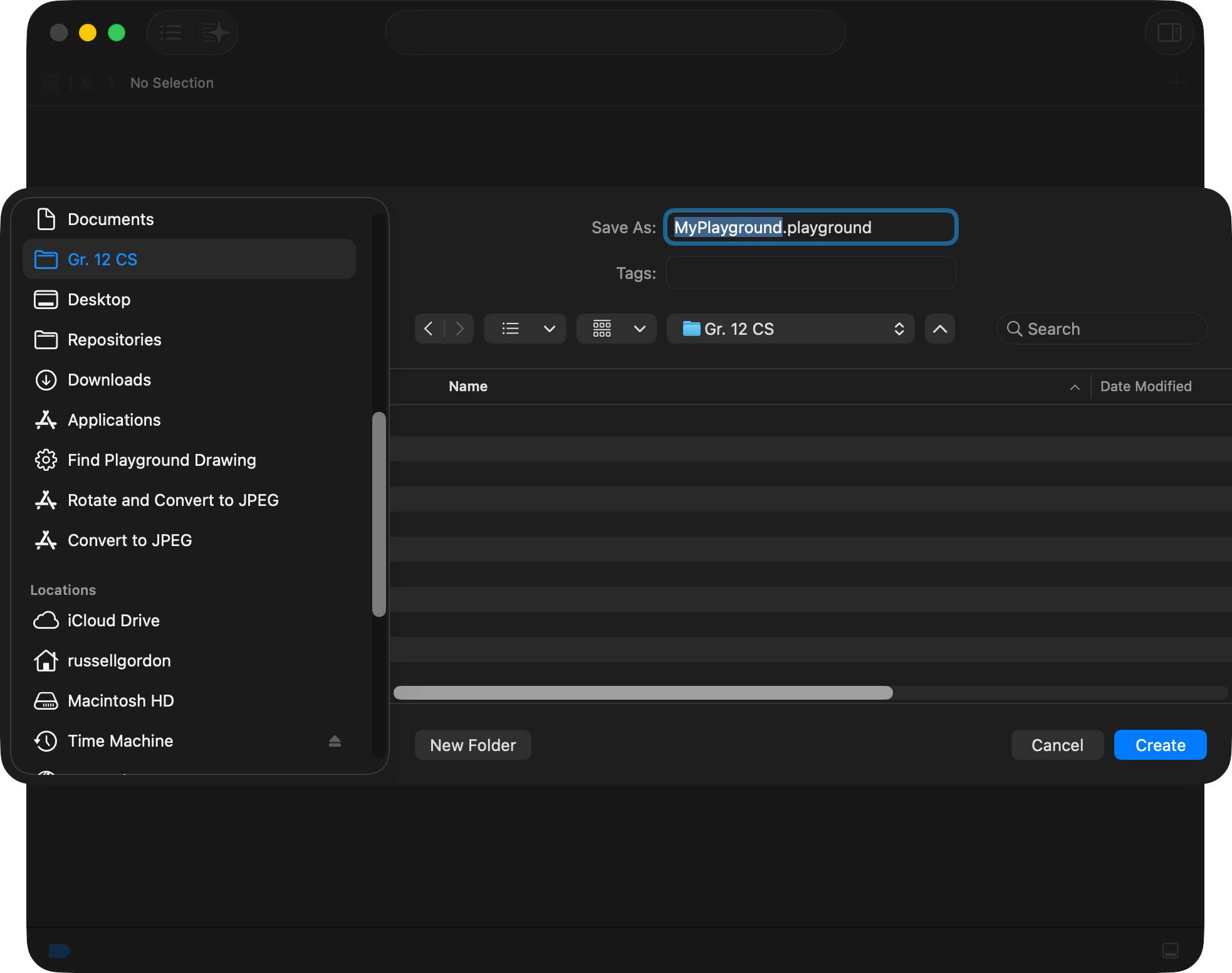
Keep things organized.
Navigate to the folder where you want to save your Xcode playground – perhaps a folder you’ve created for this course:
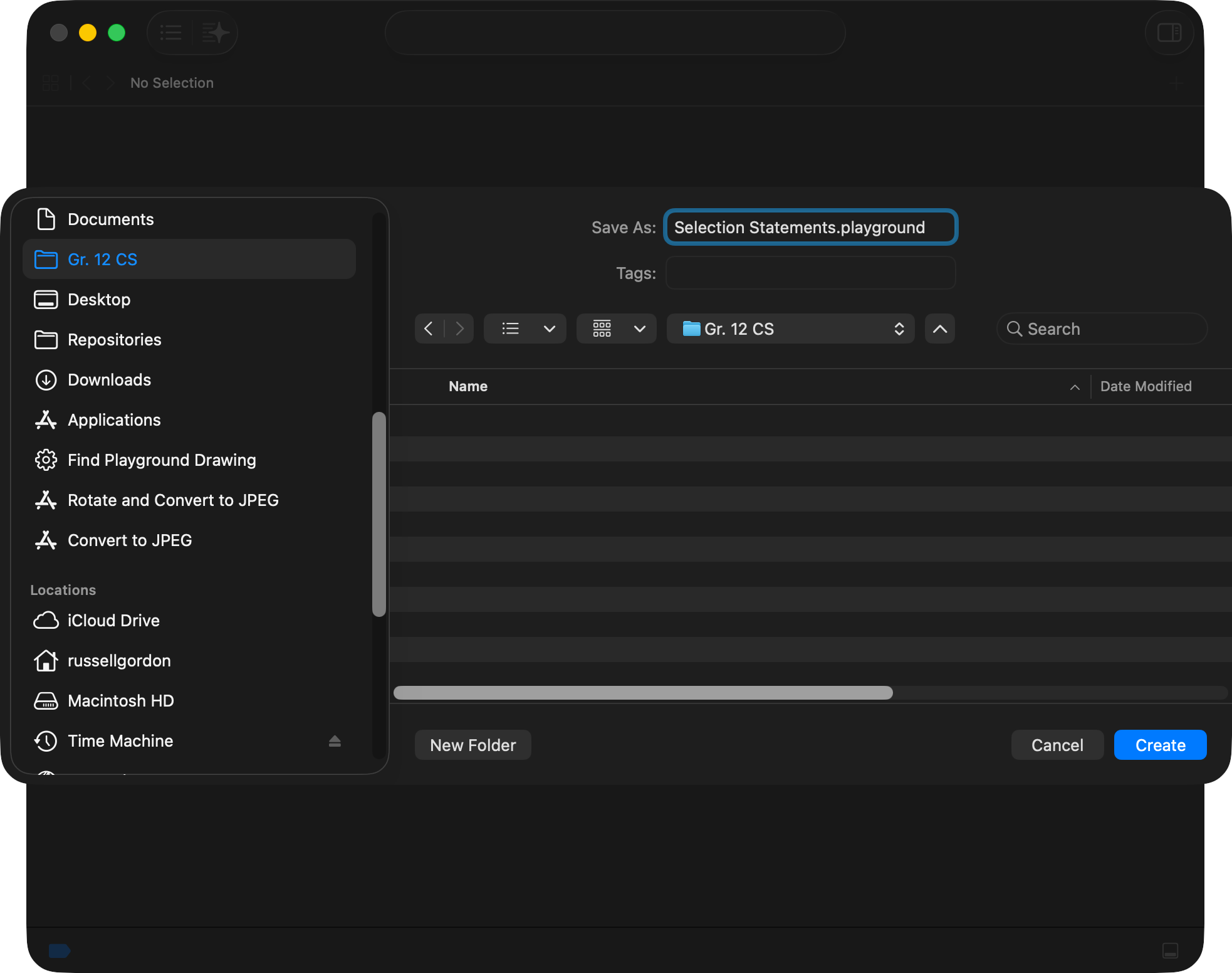
Finally, save your playground using a descriptive name:
TIP
What name you select will depend on what concept or idea you are exploring.
Show line numbers
Xcode, by default, is likely not configured to show line numbers in code that you run.
Seeing line numbers is often very helpful in understanding code, though.
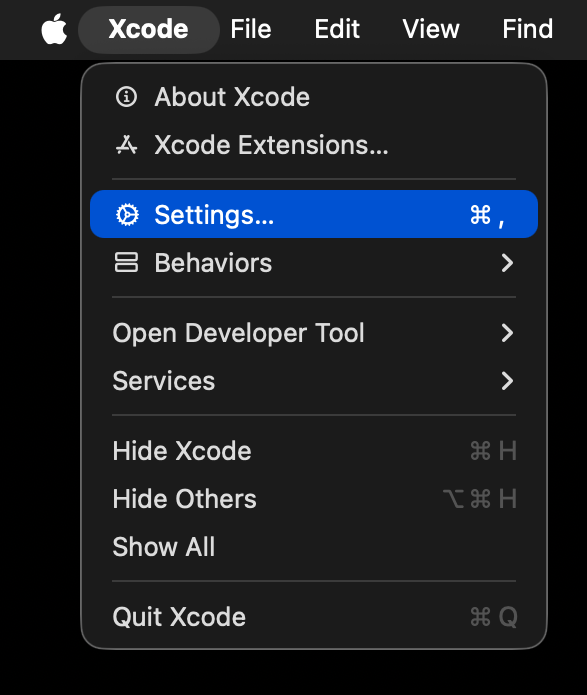
So, try opening the Xcode Settings window:
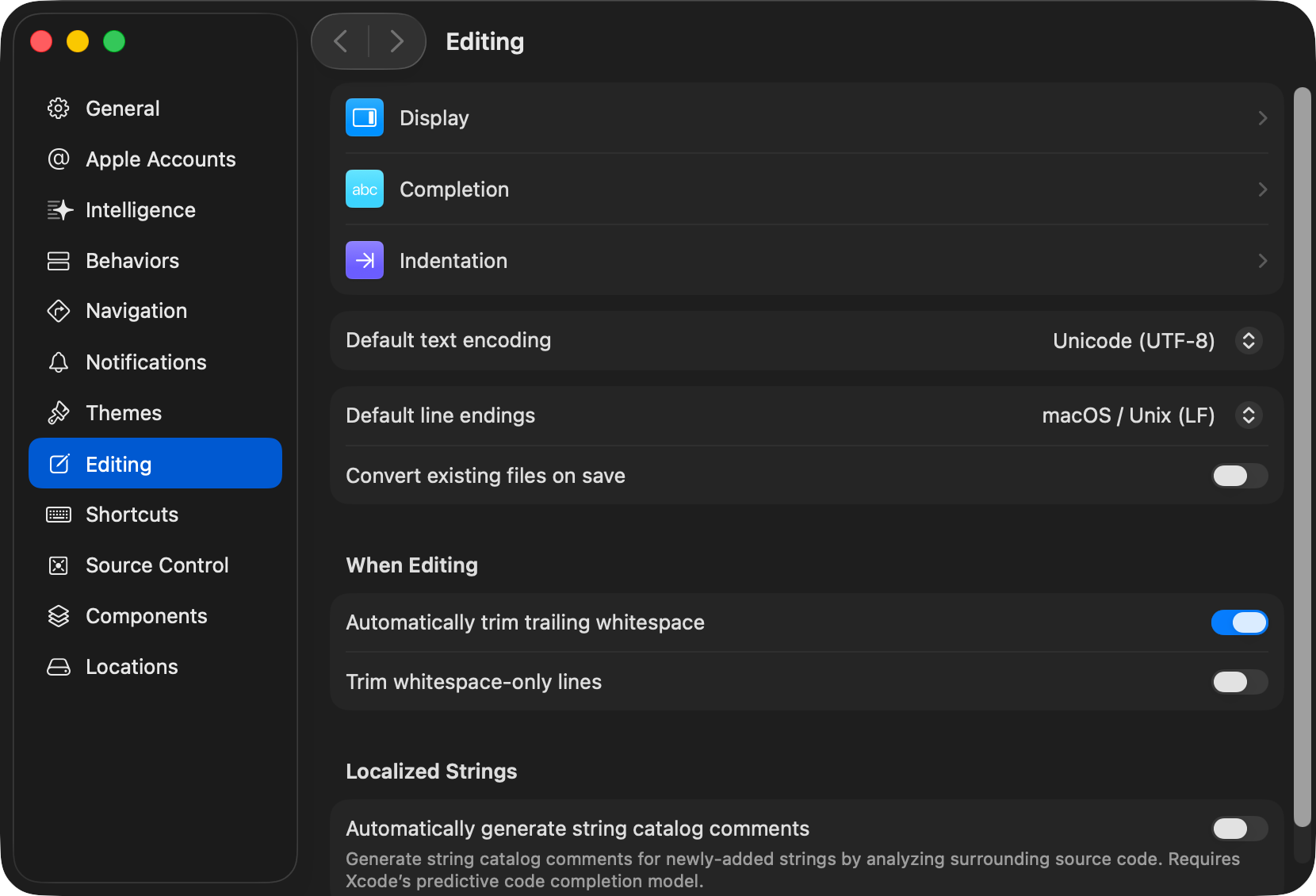
Then choose Editing:
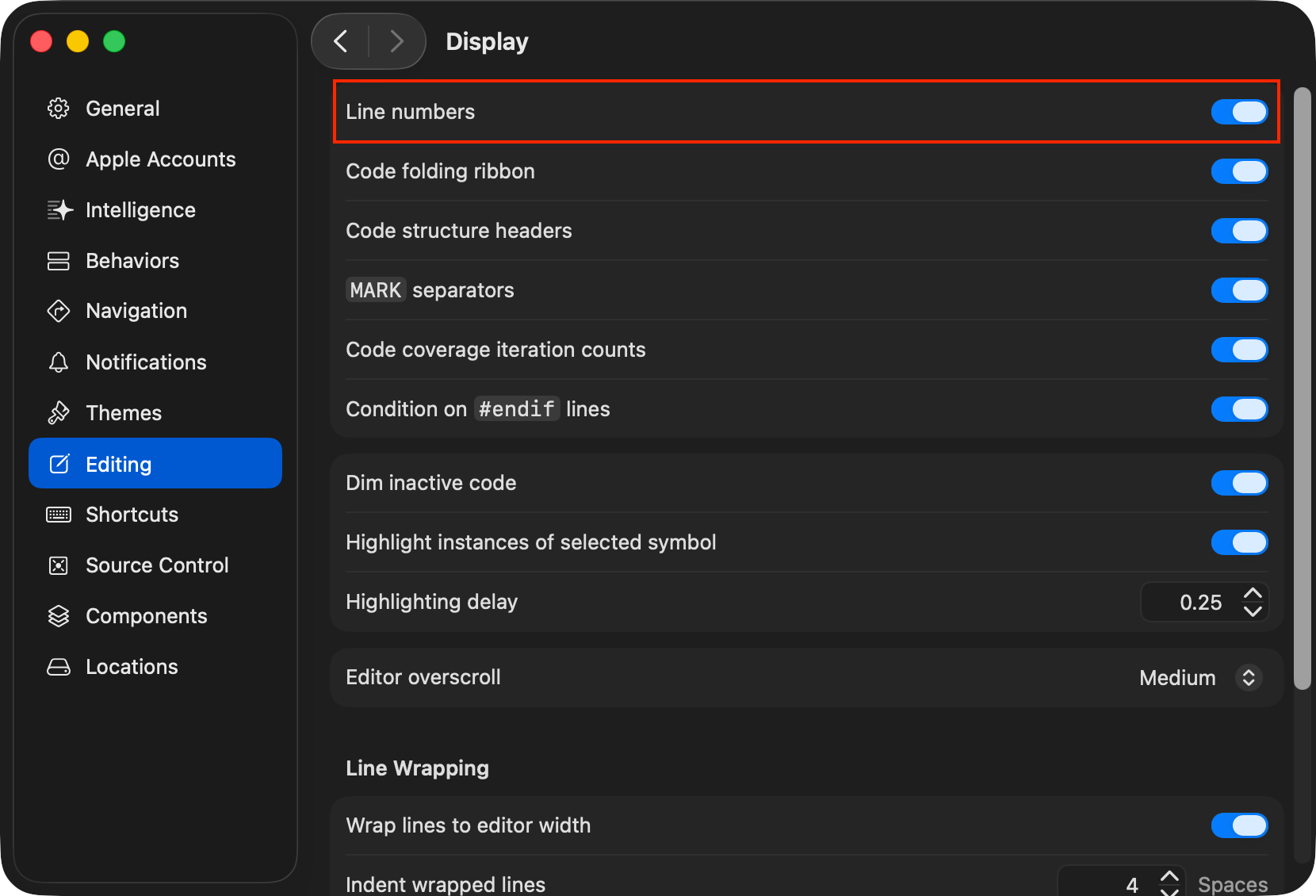
Then Display, and turn on the Line numbers switch:
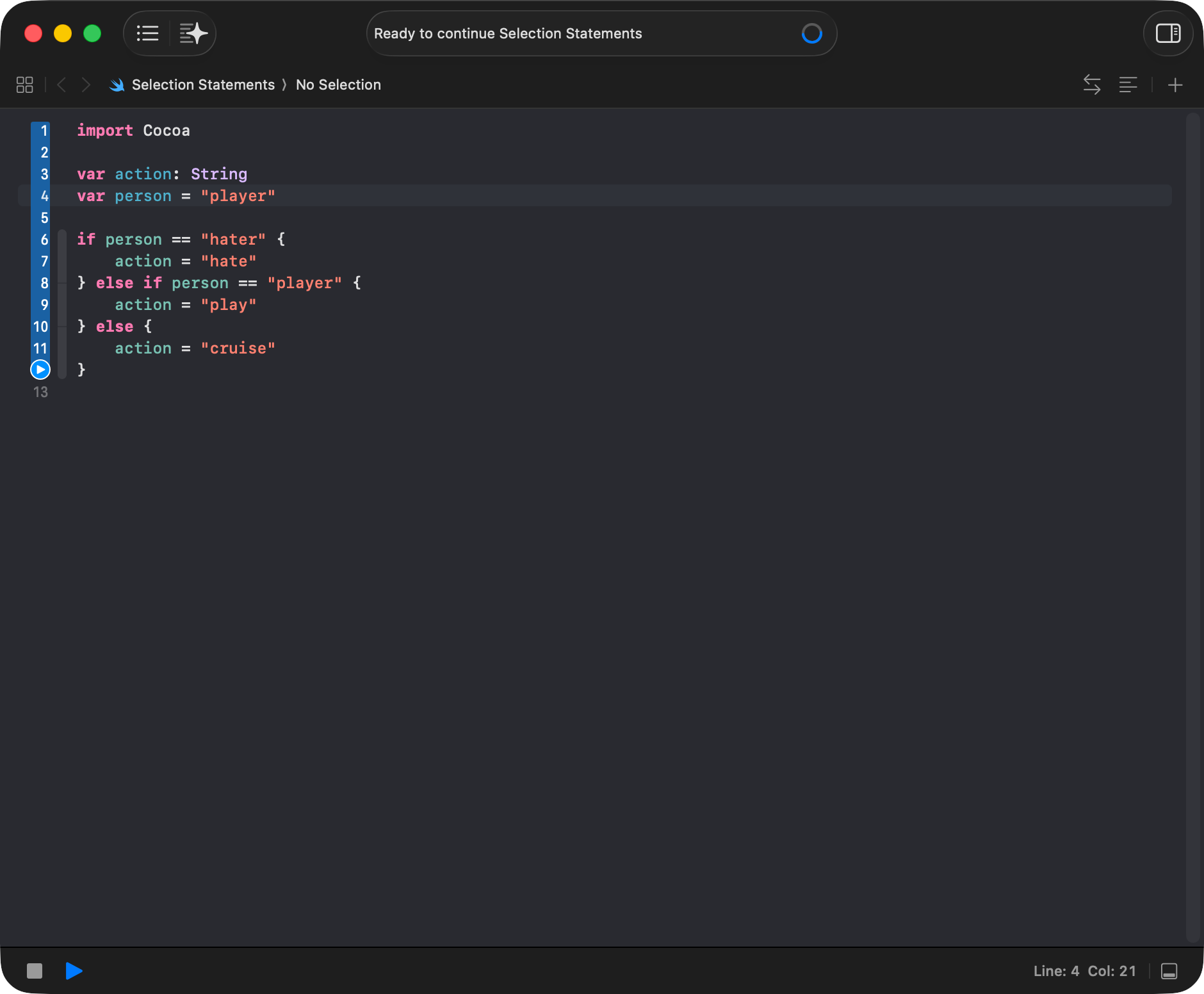
Now, when you view code in any window in Xcode, you will see line numbers along the left hand side:
Run code
If you have created a blank playground, try copying this code into your playground:
import Cocoa

var action: String
var person = "player"

if person == "hater" {
    action = "hate"
} else if person == "player" {
    action = "play"
} else {
    action = "cruise"
}
Code in Xcode playgrounds will often run automatically as you type.
This is meant to be helpful, but depending on how quickly your computer generally runs, automatically running code can be a pain at times.
You can switch to manually running code by long-pressing the ▶️ button in the bottom left corner, then selecting Manually run:
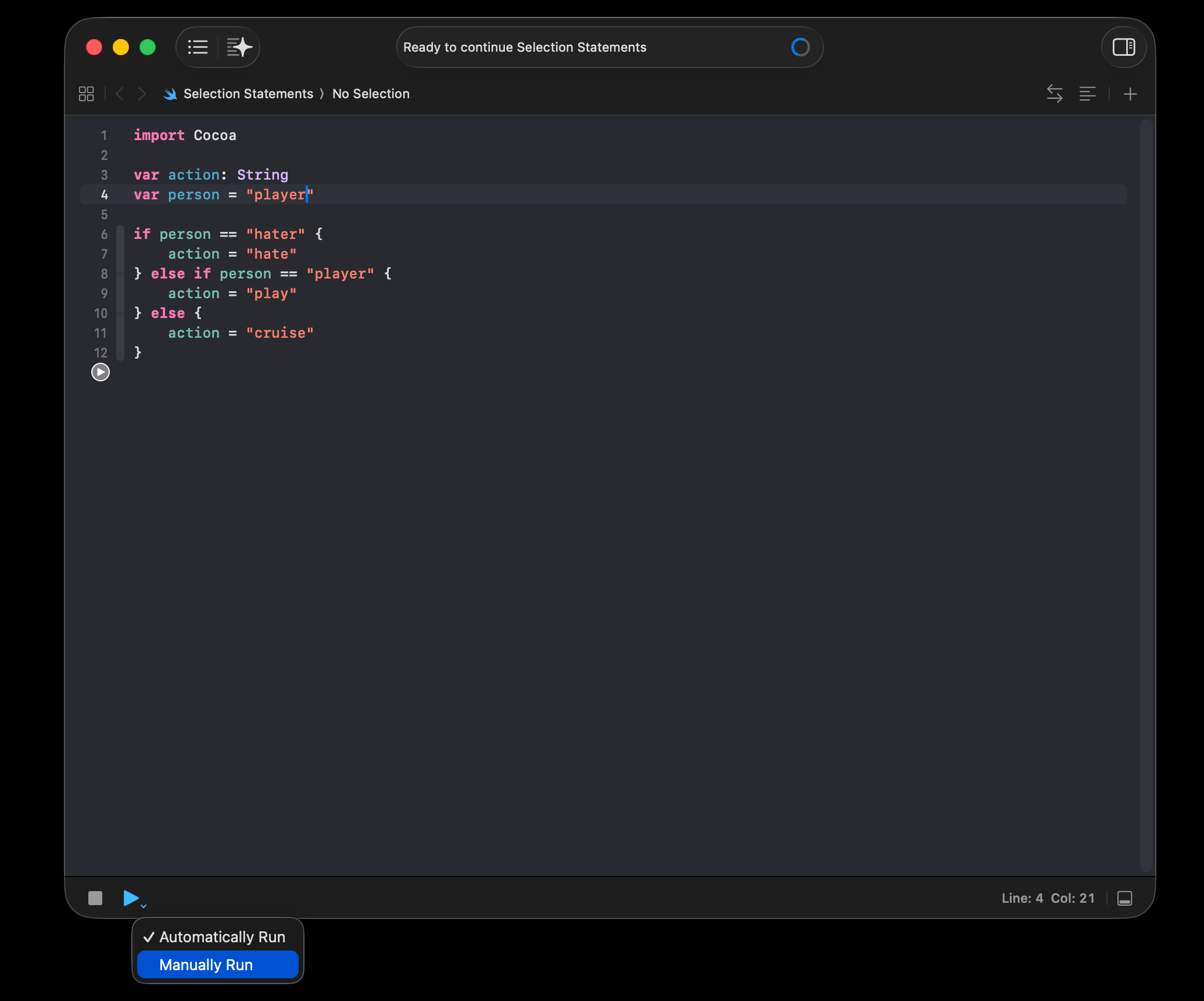
When you are ready to run code, press the ▶️ button, or (generally faster) use the Command-Shift-Return keyboard shortcut.
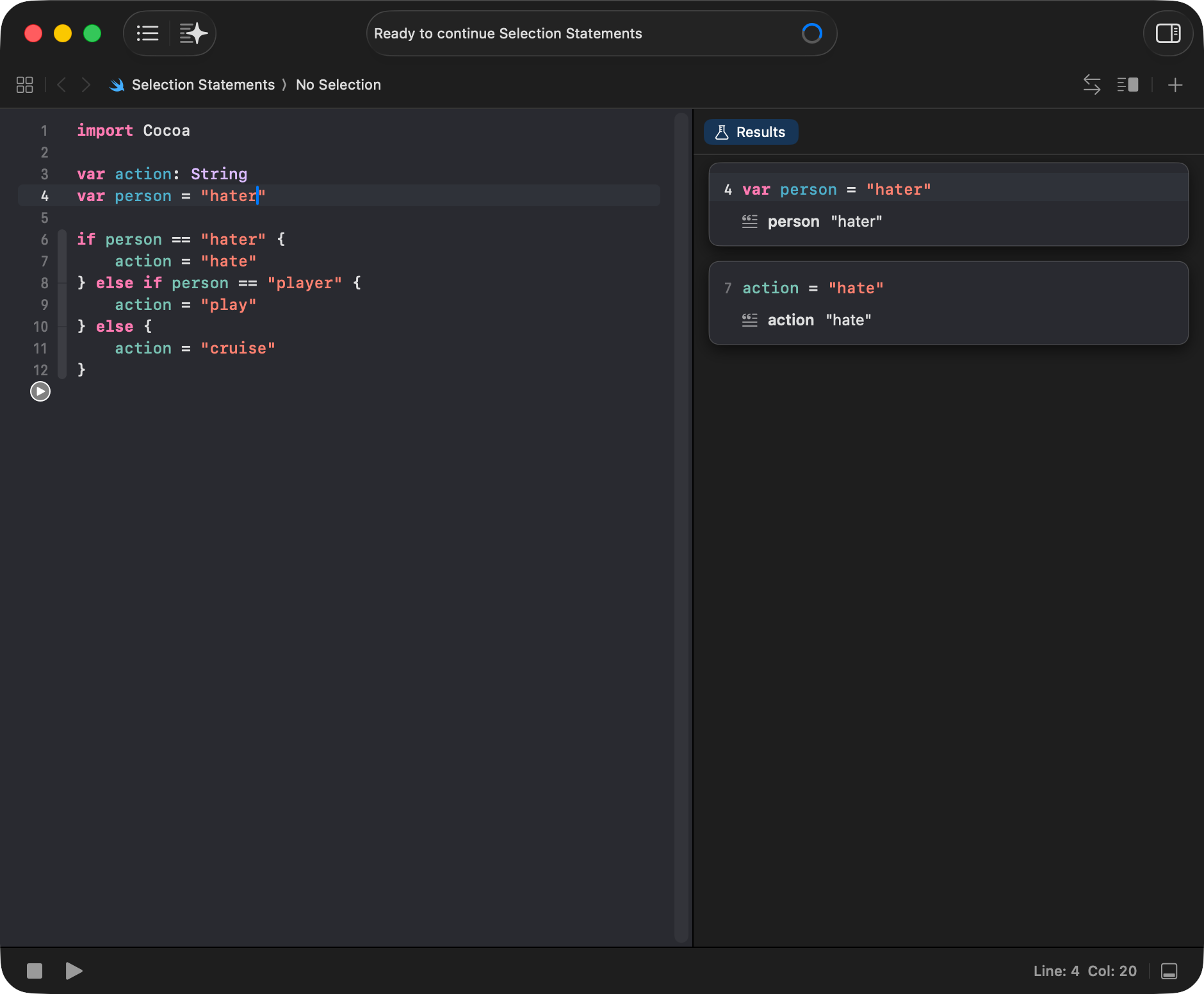
Xcode Playgrounds will usually show the Results sidebar automatically:
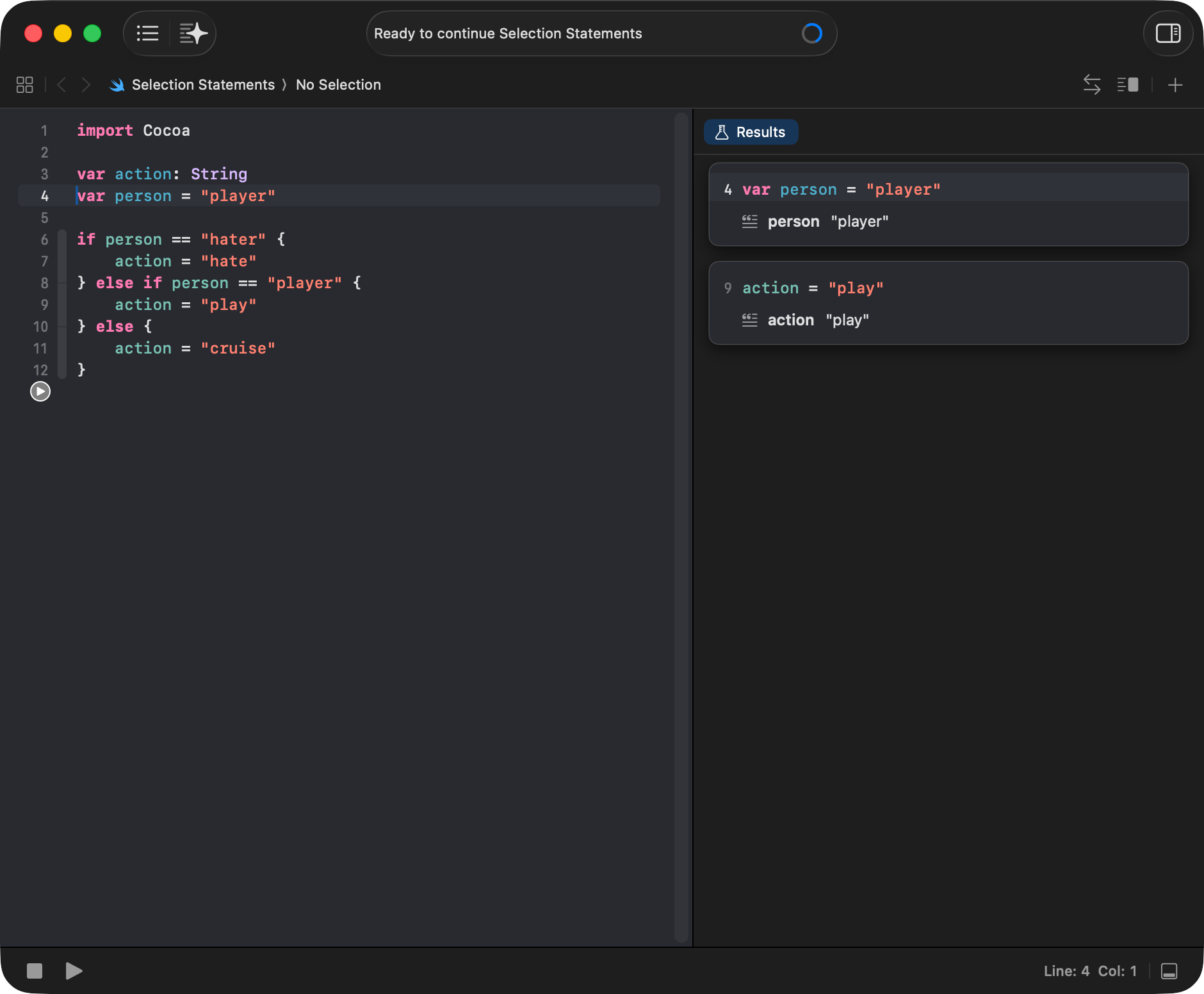
If it doesn’t, you can show results like this:
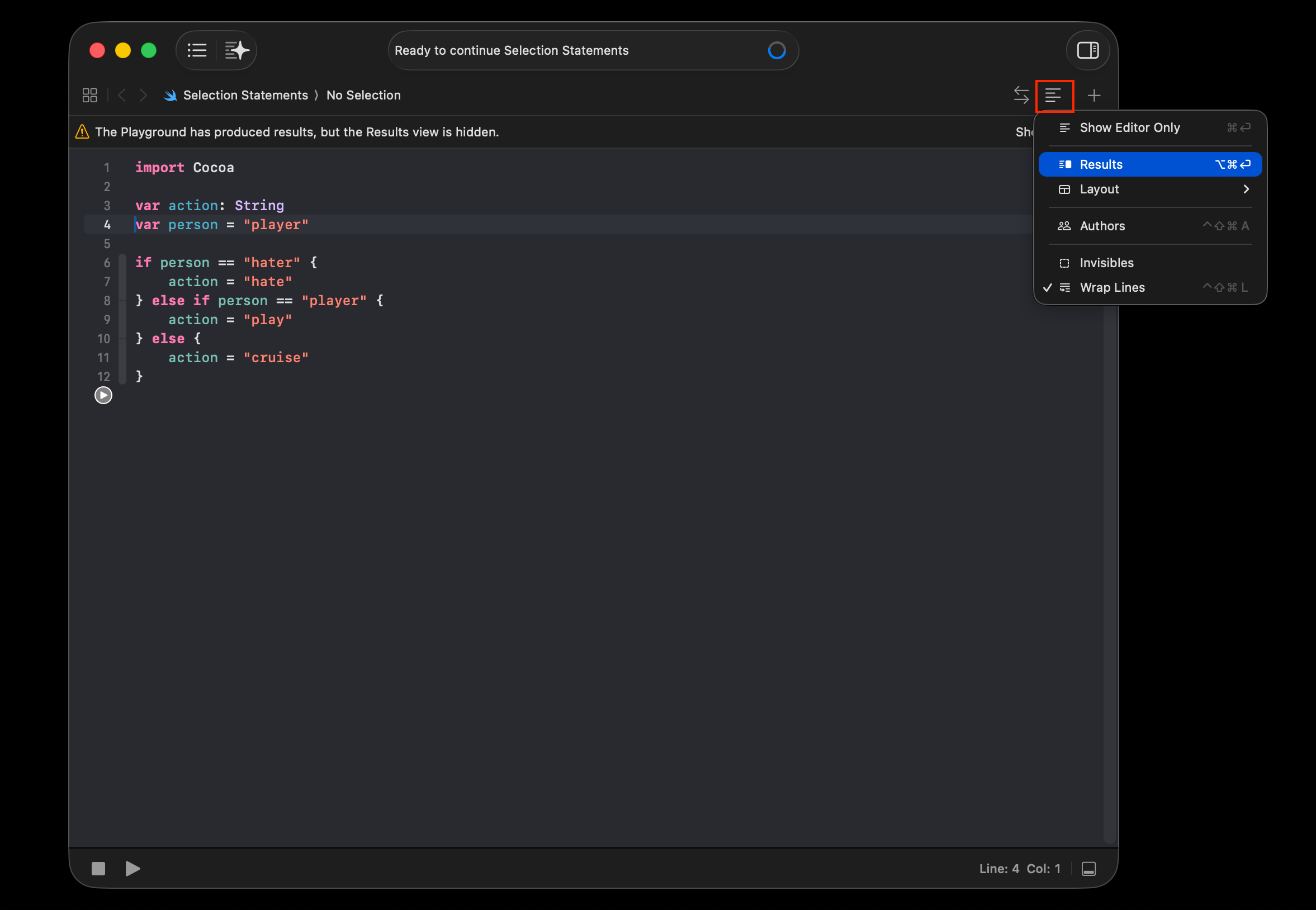
Or use the keyboard shortcut Option-Command-Return to show the Results sidebar.
As you change your code, the results will update to show you what is going on: